


In this article I will setup the new calendar control in a custom section. In the example for this article I have a section for requests and I want to show these requests in my calendar based on a start and end date. The end results will look like the picture below.

One of the great things about the Creatio calendar control is that it works with any data, not just Activities. For my example, I am displaying my custom “Request” object in the calendar. As long as the data has some date fields, you can use the calendar control with it. It’s assumed that for this your section has some sort of start and end date values, obviously since it needs to know where to show on a calendar. I’ll be adding the calendar view to the same element added to pages in 8.3 for viewing section dashboards (so you’ll need to be on 8.3 or higher to use that). Once complete, your section will have a list view, a dashboard view and also a calendar view.
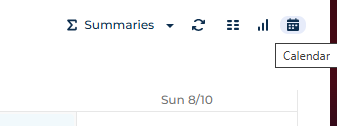
Start by selecting the new 8.3 dashboards toggle panel. This new component is basically just a tab control – each “view” it displays is just a tab. Once selected you can add a new tab. As you can see below I added mine and named it Calendar.

On this new tab you’ll add the calendar control. Just select your new Calendar tab option in to select it, then drag the Calendar component from the tools area to that tab.
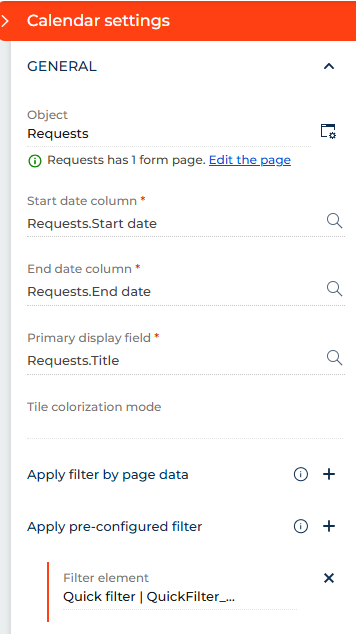
To set it up you’ll need to choose a start and end date column and a primary display field for this I just chose the title column.
Now that we have the calendar in place I want a way to filter through the dates. For this I added a quick filter to be able to select a date range to view. Without this, the calendar will just show the current week, so you’ll need the date QuickFilter so the user can select the range they would like to see.
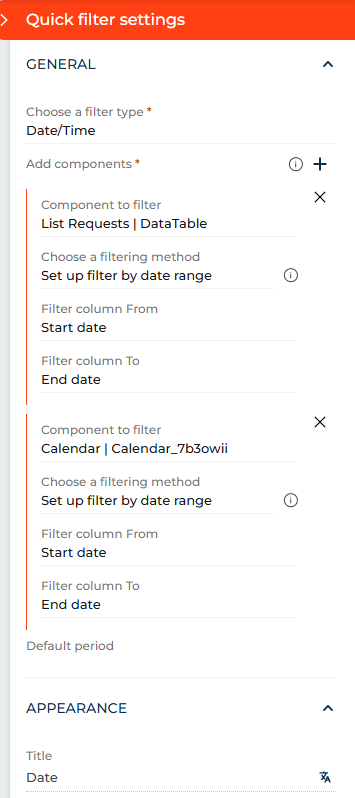
The filter is a date/time type and for the components to filter I chose to filter both my section list and my calendar.
Now with everything in place we have our calendar where we can view our request and filter it for specific dates.


