back to top

SalesLogix Basics 5 – SplitterPanel Control

The SplitterPanel control in SalesLogix gives you the ability to partition a view into sections, and gives you the ability to resize the panels at run-time by dragging the splitter line on the control.

For this example, I’ve created a simple contacts view at the account level which contains a grid on the left, with a number of controls on the right specific to the selected contact in the grid.  This is very similar to the standard history view where history details
are displayed on the right for each selected history item
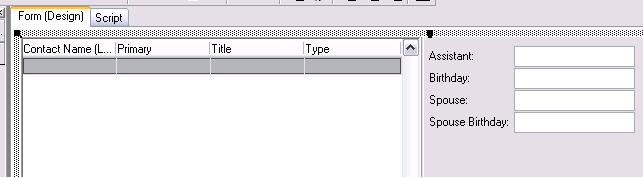


 The control is fairly easy to use, and I won’t go thorugh all the properties here, but there are two things that you need to know in order to use the control effectively.  First of all, you cannot copy and paste controls onto the right side of the SplitterPanel.  To get controls on the right side of the control, you need to add them directly from the toolbox.  Any control that you try to copy and paste will end up on the left side of the panel instead.

Second, the controls “Size” property controls the default size of the left side of the panel.  The right side fills the remainder of the space available.

To build the view in this sample I added a datagrid with a contact fields, and added some random contact fields on the right side of the splitter to be populated each time a row is selected.  Nothing special about the grid setup.  It’s just bound to the contact table via AccountID.  The other fields are not bound, but will be populated programatically on the OnRowSelect event of the grid.

The code to populate the fields goes like this:

‘Including Script – System:SLX Database Support
option explicit

Sub DataGrid1RowSelect(Sender)
    Dim sContactID

    sContactID = DataGrid1.GetCurrentField(“contactid”)

    txtAssistant.Text = GetField(“Assistant”, “Contact”, “contactid = ‘” & sContactID & “‘”)
    txtBirthday.Text = GetField(“Birthday”, “Contact”, “contactid = ‘” & sContactID & “‘”)
    txtSpouse.Text = GetField(“Spouse”, “Contact”, “contactid = ‘” & sContactID & “‘”)
    txtSpouseBirthday.Text = GetField(“SpouseBirthday”, “Contact”, “contactid = ‘” & sContactID & “‘”)
End Sub


That’s all there is to it.  I hope you find this example helpful!  Thanks for reading! [:)]

Contact Customer FX for your CRM project
We let our expertise speak for itself - let us know how our all-star team can help on your CRM project
About the Author
Jason Buss
Jason Buss
Jason is a senior application developer with Customer FX.

LEAVE A REPLY

Please enter your comment!
Please enter your name here

Infor CRM Sync for Exchange: Action Required by August 31, 2026

Using Infor CRM Sync for Exchange with Microsoft 365? Your Exchange administrator must update tenant settings by August 31, 2026 to prevent sync disruption.

[Webinar] What’s Coming Next for Infor CRM SLX and Why v10 Matters

See what’s coming next for Infor CRM SLX, including new marketing workflows, automation improvements, and reasons to consider upgrading to v10.

Disable Caching in Infor CRM SLX Web Client

In the rare case caching is causing issues in the Infor CRM SLX web client, it is possible to disable specific types of caching by making edits using Application Architect, and then deploying.

Exploring AI Options for Infor CRM v10

I've started taking a closer look at the AI capabilities built into Infor CRM v10. Over the next several posts, I'll share what I learn. From the built-in features and supported AI providers to implementation considerations, costs, and practical use cases.

Infor CRM SLX 10.0: Delegate Ownership Changes for “Everyone” Records

Learn how the new EveryoneOwnerAssignment secured action in Infor CRM SLX 10.0 allows designated users to change ownership of Everyone-owned records without requiring Administrator access.

Related Articles

Infor CRM Sync for Exchange: Action Required by August 31, 2026

Using Infor CRM Sync for Exchange with Microsoft 365? Your Exchange administrator must update tenant settings by August 31, 2026 to prevent sync disruption.

[Webinar] What’s Coming Next for Infor CRM SLX and Why v10 Matters

See what’s coming next for Infor CRM SLX, including new marketing workflows, automation improvements, and reasons to consider upgrading to v10.

Disable Caching in Infor CRM SLX Web Client

In the rare case caching is causing issues in the Infor CRM SLX web client, it is possible to disable specific types of caching by making edits using Application Architect, and then deploying.

Exploring AI Options for Infor CRM v10

I've started taking a closer look at the AI capabilities built into Infor CRM v10. Over the next several posts, I'll share what I learn. From the built-in features and supported AI providers to implementation considerations, costs, and practical use cases.

Related Videos