


Artificial intelligence can be really helpful, but it can also be unnecessary. So we started looking at how it can help with the everyday work happening inside Creatio.
One area that AI can give a boost is workflows. In Creatio, AI can be incorporated into business processes so it can interpret information, generate a useful result, and pass that result to the next step in a workflow. This makes it possible to build AI-powered workflows without developing a custom application or writing large amounts of code.
But that doesn’t mean AI should be added to every process. At Customer FX, we believe you should be both picky and intentional when it comes to adding AI.
When thinking about workflows, the best place to start is one that already has a clear business purpose but includes one or two steps that require someone to read, interpret, categorize, or summarize information.
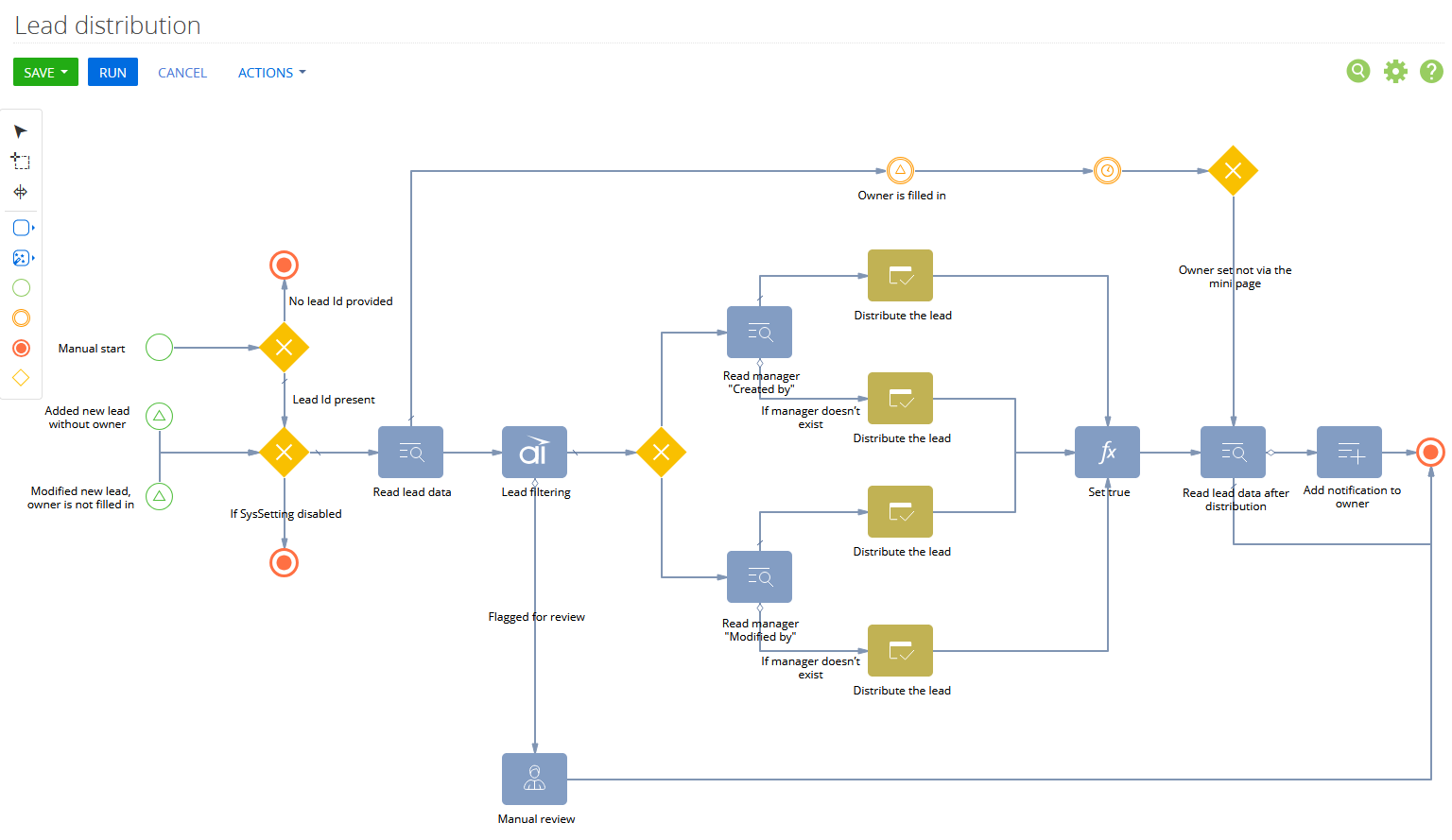
Lead qualification and routing is a good example.
What Is an AI-Powered Workflow in Creatio?
An AI-powered workflow combines traditional process automation with an AI capability that can interpret information or produce a response.
Traditional automation works especially well when the rules are predictable:
- If a lead is located in Minnesota, assign it to the Midwest sales territory.
- If the estimated project value is greater than $100,000, notify the sales manager.
- If a required field is empty, send the record for review.
AI can help when the decision requires more interpretation:
- What is the lead asking for?
- Which product or service appears to be the best fit?
- Does the inquiry show strong buying intent?
- How urgent does the request appear to be?
- What information should the salesperson know before following up?
A useful way to think about it is:
Traditional automation handles the predictable steps. AI helps with the steps that require interpretation.
Creatio’s AI architecture is designed to make AI capabilities available within CRM applications, custom no-code applications, and business workflows. Depending on the Creatio version and configuration, these capabilities may be presented as AI Skills, agents, or sub-agents.
A Practical Example: AI Lead Qualification and Routing
Imagine a prospective customer submits a form on your website.
Creatio creates a new lead containing:
- The person’s name and company
- Contact information
- Industry
- Location
- The product or service selected
- A free-text description of what the person needs
A traditional workflow could route the lead using fields such as territory, industry, or company size. That probably works pretty well, unless the most important information is buried in the comments field.
For example, the lead writes:
We are currently using an older CRM and need help evaluating a replacement. We have approximately 75 users and would like to improve our sales process before the end of the year.
A person reading that message might quickly conclude that:
- The lead is evaluating a CRM replacement.
- The opportunity may involve approximately 75 users.
- The project has a stated timeline.
- The inquiry should probably go to a senior CRM consultant or sales representative.
- The lead deserves prompt follow-up.
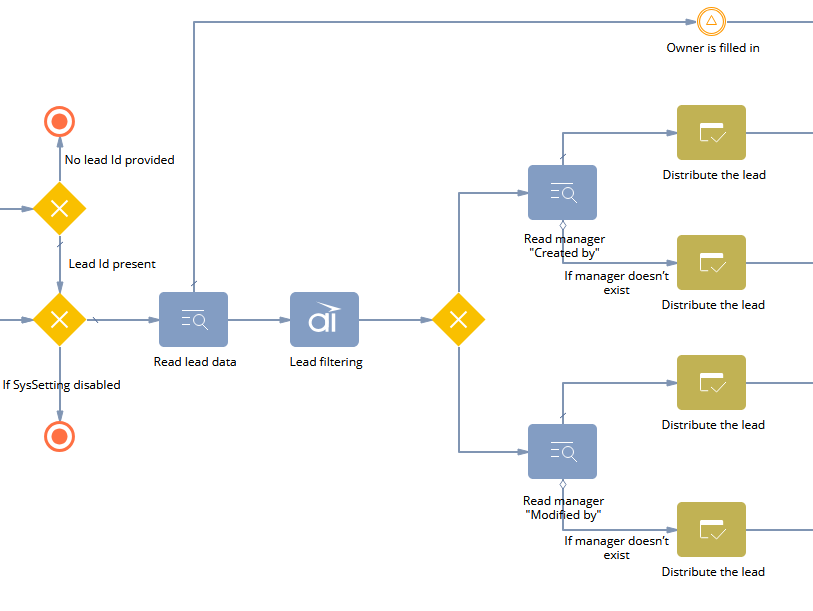
An AI-enabled workflow can help Creatio reach the same type of practical conclusion and use it to move the lead forward.
The workflow might:
- Review the lead’s submitted information
- Identify the likely product or service interest
- Summarize the lead’s needs
- Assign a qualification category
- Recommend the appropriate sales team or representative
- Create a follow-up activity
- Send uncertain or incomplete leads to a person for review
The AI is not replacing the lead-management process. It is helping the process use information that would otherwise need to be interpreted manually.
Why Use AI for Lead Qualification?
Many organizations already have lead-routing rules. The problem is not always a lack of automation. The problem is that the available rules do not account for everything a prospective customer might say.
A lead form may include clear dropdown selections, but people do not always choose the right option. Others provide most of the useful information in a comment box. Some inquiries fit multiple categories. Some sound urgent but arrive without a requested timeline.
AI can evaluate that unstructured information and turn it into something the workflow can use.
This can help organizations:
- Respond to promising leads more quickly
- Apply qualification criteria more consistently
- Reduce manual record review
- Route leads to the right team sooner
- Give sales representatives a clearer summary before the first conversation
- Identify incomplete or unusual inquiries that need human attention
Creatio also includes lead and opportunity management capabilities that use available lead data and historical patterns to support lead scoring and sales-readiness decisions. These can complement a custom workflow rather than requiring the workflow to replace all existing qualification tools.
How to Build the Workflow in Creatio
The exact screens and terminology may differ based on your version of Creatio, installed applications, licensing, and AI configuration. However, the overall design of the workflow follows a straightforward pattern.
1. Define the Business Outcome
Start by describing what the workflow should accomplish in business terms.
For example:
When a new website lead is created, review the lead’s information, identify the likely area of interest, recommend a routing category, and prepare the record for timely sales follow-up.
Avoid starting with the AI prompt.
First decide:
- What problem are you solving?
- What should happen after the AI completes its task?
- Which decisions must remain governed by fixed business rules?
- When should a person become involved?
A narrow, well-defined outcome is much easier to test than a broad instruction such as “qualify this lead.”
2. Choose the Workflow Trigger
Next, determine what starts the process.
Possible triggers include:
- A new lead is created
- A website form is submitted
- A lead reaches a specific stage
- A salesperson requests AI qualification
- Previously incomplete lead information is updated
For a first project, automatically starting the process when a website lead is created is usually easy for users to understand and measure.
However, you may initially choose a manual trigger while testing. This allows a user to decide which records should be processed before the workflow is fully automated.
3. Identify the Data the AI Needs
AI results depend heavily on the information provided to the AI.
For a lead qualification workflow, useful data might include:
- Lead source
- Contact name
- Company name
- Industry
- Company size
- Territory or location
- Product interest
- Estimated budget
- Desired timeline
- Lead comments
- Previous interactions
- Existing account or contact information
Do not send every field simply because it is available.
Include the information needed to make the requested determination. Unnecessary data can make the instructions harder to manage and may consume additional AI usage.
This is also a good time to review data access and privacy. The workflow should only provide the AI with information that is appropriate for the task and permitted by your organization’s policies.
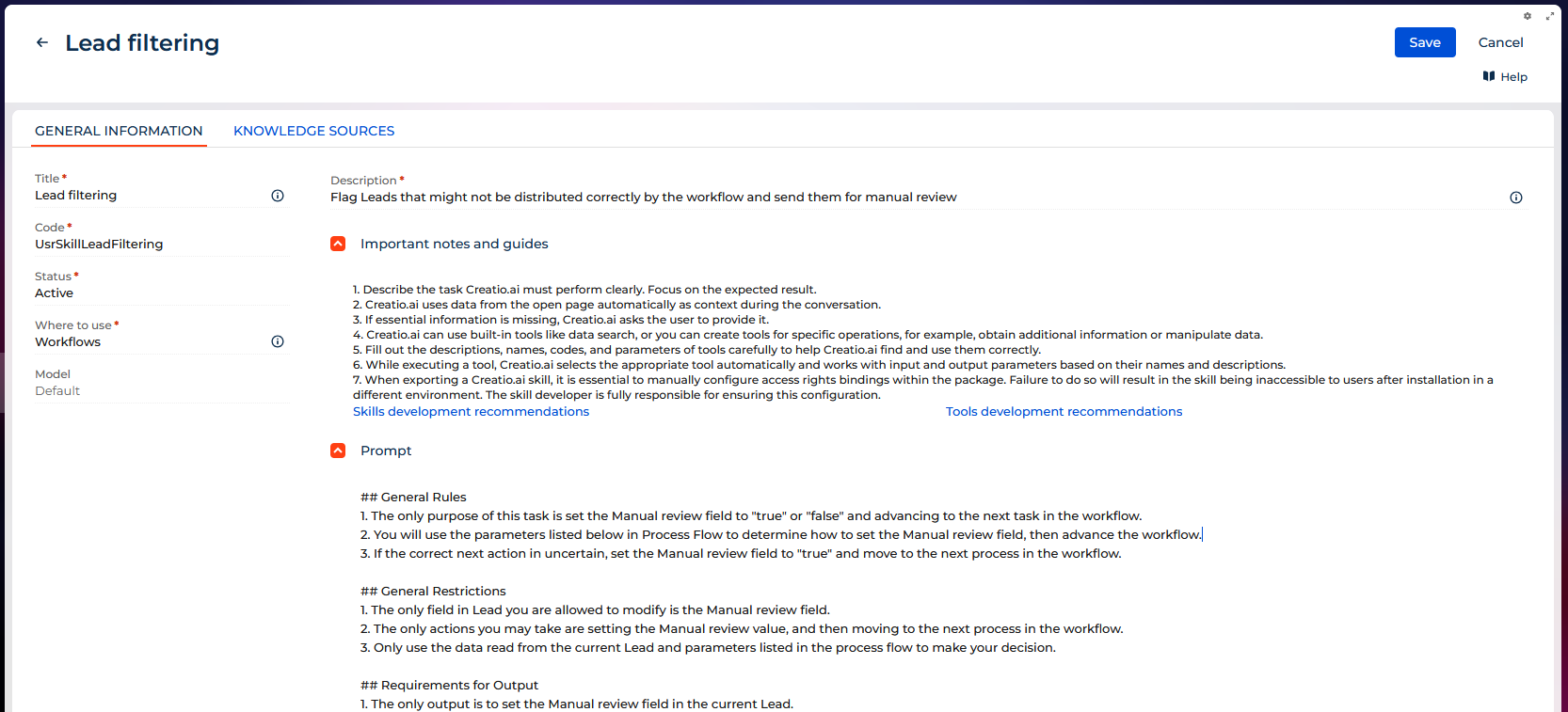
4. Create the AI Task
The AI task should clearly describe what the AI needs to review and what it should return.
For example:
Review the lead information and determine the most likely service category. Select one of the approved categories: CRM implementation, CRM replacement, custom development, integration, technical support, training, or other. Provide a short summary of the lead’s stated need and identify whether the inquiry includes a budget, timeline, number of users, or urgent business issue. Do not invent information that is not included in the lead record.
This instruction is more useful than:
Analyze and qualify this lead.
The first version defines the categories, desired output, and boundaries. The second leaves too much open to interpretation.
Creatio recommends keeping AI instructions clear and concise. More complicated tasks can also be divided into smaller steps rather than expecting one instruction to handle an entire business process.
5. Ask for a Structured Result
An AI-generated paragraph may be helpful to a salesperson, but it is difficult for a business process to use consistently.
Whenever possible, ask the AI to return clearly defined values.
The result might include:
- Service category: CRM replacement
- Priority: High
- Buying intent: Evaluation
- Timeline identified: Yes
- Number of users identified: Yes
- Recommended route: Senior sales consultant
- Summary: Prospect is evaluating a replacement for an older CRM for approximately 75 users and wants to improve its sales process before year-end.
- Confidence: High
The process can then use these outputs to update fields, evaluate conditions, assign ownership, and create activities.
The summary remains useful to a person. The categories and flags are useful to the workflow.
6. Add Your Business Rules
The AI result should feed into established business rules rather than replacing them.
For example:
- If the service category is technical support, route the lead to the support sales queue.
- If the service category is CRM replacement and the number of users is greater than 50, assign it to a senior consultant.
- If the inquiry contains a stated deadline, create a high-priority follow-up task.
- If the lead is located in an assigned territory, use the territory owner.
- If AI confidence is low, send the lead to the marketing team for review.
- If required contact information is missing, do not assign the lead to sales yet.
This combination provides the flexibility of AI without giving up control over the workflow.
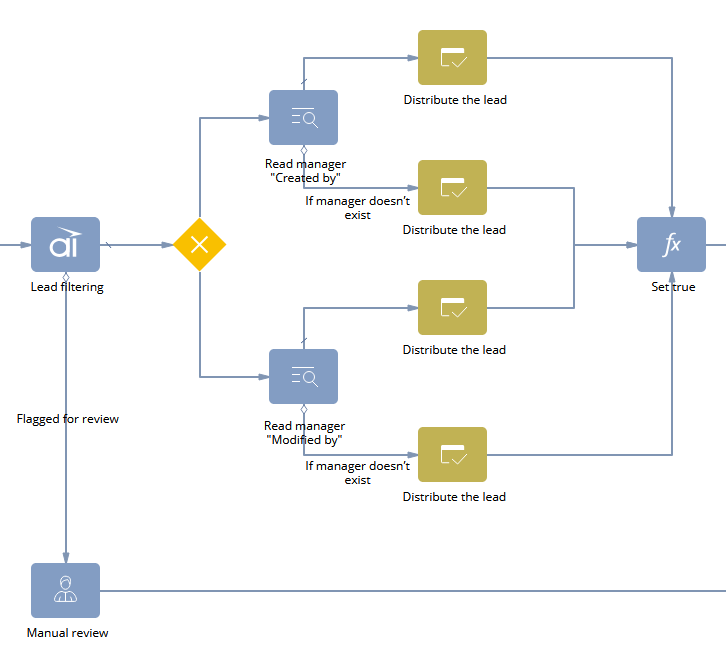
Creatio provides business process elements that can call configured AI capabilities from within a process. The AI result can then be used alongside standard process elements, data updates, and conditional flows.
7. Assign the Lead and Create the Next Step
Routing a lead is only useful if it produces a clear next action.
The process might:
- Assign the lead owner
- Move the lead to a qualification stage
- Create a phone call or email activity
- Set the activity due date
- Notify the assigned representative
- Add the AI-generated summary to the lead
- Alert a sales manager when a lead meets high-priority criteria
The assigned person should be able to open the record and immediately understand:
- Why the lead was routed to them
- What the lead appears to need
- What information was found
- What information is still missing
- What action they should take next
That is where the workflow begins to create real value.
What Should AI Decide?
AI can be useful, but it should not automatically control every part of the process.
Good AI-assisted decisions may include:
- Classifying a written inquiry
- Identifying likely intent
- Summarizing the lead’s needs
- Recognizing the presence of a timeline or budget
- Recommending a routing category
- Flagging potentially urgent language
- Identifying missing information
Fixed business rules are often better for:
- Territory ownership
- Account ownership
- Required approvals
- Legal or regulatory conditions
- Assignment limits
- Service-level deadlines
- Mandatory data requirements
- Final disqualification rules
The strongest workflow usually combines both.
AI interprets the information. Your process rules determine what the organization does with that interpretation.
Include a Human Review Path
No AI-powered workflow should assume that every result will be correct.
A review path can handle situations such as:
- The inquiry is too vague to classify.
- The lead appears to fit more than one category.
- Important information conflicts across fields.
- The recommended route does not match an established account owner.
- The AI result has low confidence.
- The inquiry includes an unusual request.
- The lead may be spam or unrelated to the business.
In these situations, the workflow could assign the record to a marketing coordinator or sales operations user for review.
This does not make the automation less successful. It makes the workflow more realistic.
The goal is not necessarily to route 100 percent of leads without human involvement. The goal is to reduce unnecessary manual work while making sure exceptions receive the attention they need.
How to Test the Workflow
Do not begin by turning the process loose on every new lead. Create a test group that represents the range of inquiries your organization receives.
Include examples such as:
- A clear request for a specific product
- A vague inquiry
- A lead with a firm deadline
- A lead with no timeline
- A large potential opportunity
- A small support request
- An inquiry that fits multiple service categories
- A record with incorrect dropdown selections
- A message containing very little useful information
- A non-sales inquiry or spam submission
Compare the workflow’s result with the decision an experienced team member would make.
Look for questions such as:
- Was the service category accurate?
- Was the summary factually correct?
- Did the AI avoid making up missing details?
- Was the lead assigned to the right team?
- Did the workflow recognize when human review was needed?
- Did it create the correct next step?
- Were any important data points left out?
Testing with realistic examples is more valuable than testing only with perfectly completed records.
How to Measure the Results
Before launching the workflow, record how the current process performs. Useful measurements include:
Time to assignment
How long does it take for a new lead to receive an owner?
Time to first follow-up
How quickly does the assigned person contact the lead?
Automatic routing rate
What percentage of leads can be routed without manual review?
Reassignment rate
How often does a salesperson need to send the lead to someone else? A high reassignment rate may indicate that your categories, instructions, or business rules need improvement.
Manual review rate
How often does the workflow send a lead to a person for evaluation? Some manual review is expected. The goal is to make that review intentional rather than requiring someone to inspect every record.
Qualification consistency
Are similar leads receiving similar categories, priorities, and next steps?
Lead conversion
Are qualified leads moving to opportunities more consistently after the workflow is introduced?
Sales team feedback
Do sales representatives find the AI-generated summaries accurate and useful? Not every benefit needs to be measured in revenue immediately. Faster ownership, fewer reassignments, and better-prepared sales conversations can all indicate that the workflow is improving the lead-management process.
Common Mistakes to Avoid
Trying to automate too much at once
Start with one narrow task, such as classifying the inquiry and recommending a route. Once that works reliably, you can add prioritization, summaries, follow-up recommendations, or other capabilities.
Using vague instructions
“Qualify this lead” means different things to different organizations. Define your categories, criteria, expected output, and restrictions.
Expecting AI to fix poor data
AI can interpret unstructured information, but it cannot reliably compensate for missing, outdated, duplicated, or inaccurate CRM data. Data quality still matters.
Allowing AI to invent missing details
Tell the AI to distinguish between information found in the record and information that is unknown. A blank budget is better than a fictional budget.
Skipping exception handling
There will always be records that do not fit the expected pattern. Decide in advance what happens to them.
Measuring activity instead of outcomes
The fact that the AI processed 1,000 leads does not tell you whether it helped.
Measure routing accuracy, response time, reassignments, and user feedback.
Start With One Useful Workflow
You do not need to redesign your entire lead-management process to begin using AI in Creatio. Start with one step that regularly requires someone to read information and make a repetitive decision.
For lead qualification and routing, that might mean:
- Reviewing the lead’s comments
- Selecting an approved service category
- Creating a short factual summary
- Recommending the correct route
- Sending unclear records for human review
That is a manageable project with a clear business purpose. Once it is working, you can build on it.
You might add lead-priority recommendations, follow-up email drafts, meeting preparation summaries, or additional routing logic. But those additions should come after the initial workflow has been tested and shown to provide useful results. AI-powered workflows are most effective when they are designed around a real business process, not when AI is added simply because the technology is available.
With Creatio’s no-code process tools and embedded AI capabilities, technical and non-technical team members can work together to identify the right use case, define the business rules, and build a workflow that saves time without giving up oversight. The key is to keep the first project focused, test it with real-world data, and improve it based on what your users experience.
Frequently Asked Questions
Can you build an AI-powered workflow in Creatio without coding?
Yes. Creatio provides no-code business process tools and AI capabilities that can be incorporated into workflows. The exact configuration depends on the Creatio version, installed products, available AI features, and the complexity of the use case.
What is the difference between an automated workflow and an AI-powered workflow?
A traditional automated workflow follows predefined rules. An AI-powered workflow can also interpret unstructured information, generate summaries, classify content, or recommend an action before the predefined process rules determine what happens next.
Can AI automatically qualify leads in Creatio?
AI can assist with lead qualification by reviewing available lead information, identifying intent, summarizing needs, and assigning categories. Organizations should still define their qualification standards, use fixed rules where appropriate, and include human review for uncertain results.
Should AI assign leads directly to sales representatives?
It can, but the safer approach is to combine the AI recommendation with established rules such as territory, account ownership, product expertise, availability, and required approvals.
What is the best first AI workflow to build in Creatio?
Choose a repetitive process that has a clear outcome and includes a step where someone regularly reads, summarizes, or categorizes information. Lead routing, case classification, request summarization, and follow-up preparation are all practical starting points.
Does an AI-powered workflow eliminate manual review?
Not necessarily. A well-designed workflow automates routine cases and intentionally sends uncertain, incomplete, or unusual records to a person for review.

