back to top

Basics – Setting filters in the OpenDialog common dialog

I wanted to run through quickly how to set filters when using the OpenDialog in the SalesLogix LAN client.  When using OpenDialog, it’s nice to be able to define filters so that your users only see the type of file that you want them to open. This is really easy to set up.

The Filter properties of the OpenDialog control displays two columns; Filter Name and Filter.  The Filter Name column is what is displayed int he “Files of type” dropdown in the the actual Open form.  The filters column defines the filters themselves.  You do have to define the file extentions in BOTH columns otherwise the filtering will not work. 
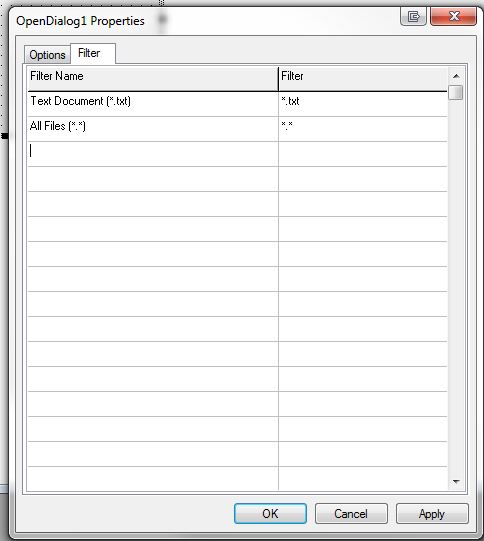
 

In my sample, I am setting a filter for text files, as well as all files. If you want to define multiple file types such as word documents (doc and docx), all you have to do is separate them by semi-colons.  In that case, the value in the FilterName column would be “Documents (*.doc;*.docx)” while the Filter column would contain “*.doc;*docx”
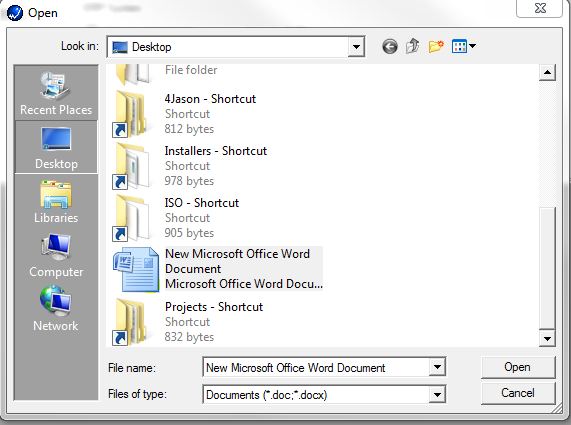
 

 That’s all there is to it!     Also, there are a bunch of options listed on the options tab when looking at the filters property for the dialog, which control much of the behavior of the dialog itself.   I’d recommend taking a look through those options also to see how you can control the behavior of the OpenDialog.

 Thanks for reading!

Contact Customer FX for your CRM project
We let our expertise speak for itself - let us know how our all-star team can help on your CRM project
About the Author
Jason Buss
Jason Buss
Jason is a senior application developer with Customer FX.

LEAVE A REPLY

Please enter your comment!
Please enter your name here

Infor CRM Sync for Exchange: Action Required by August 31, 2026

Using Infor CRM Sync for Exchange with Microsoft 365? Your Exchange administrator must update tenant settings by August 31, 2026 to prevent sync disruption.

[Webinar] What’s Coming Next for Infor CRM SLX and Why v10 Matters

See what’s coming next for Infor CRM SLX, including new marketing workflows, automation improvements, and reasons to consider upgrading to v10.

Disable Caching in Infor CRM SLX Web Client

In the rare case caching is causing issues in the Infor CRM SLX web client, it is possible to disable specific types of caching by making edits using Application Architect, and then deploying.

Exploring AI Options for Infor CRM v10

I've started taking a closer look at the AI capabilities built into Infor CRM v10. Over the next several posts, I'll share what I learn. From the built-in features and supported AI providers to implementation considerations, costs, and practical use cases.

Infor CRM SLX 10.0: Delegate Ownership Changes for “Everyone” Records

Learn how the new EveryoneOwnerAssignment secured action in Infor CRM SLX 10.0 allows designated users to change ownership of Everyone-owned records without requiring Administrator access.

Related Articles

Infor CRM Sync for Exchange: Action Required by August 31, 2026

Using Infor CRM Sync for Exchange with Microsoft 365? Your Exchange administrator must update tenant settings by August 31, 2026 to prevent sync disruption.

[Webinar] What’s Coming Next for Infor CRM SLX and Why v10 Matters

See what’s coming next for Infor CRM SLX, including new marketing workflows, automation improvements, and reasons to consider upgrading to v10.

Disable Caching in Infor CRM SLX Web Client

In the rare case caching is causing issues in the Infor CRM SLX web client, it is possible to disable specific types of caching by making edits using Application Architect, and then deploying.

Exploring AI Options for Infor CRM v10

I've started taking a closer look at the AI capabilities built into Infor CRM v10. Over the next several posts, I'll share what I learn. From the built-in features and supported AI providers to implementation considerations, costs, and practical use cases.

Related Videos