


In the SalesLogix web client, the Area Category Issue list at Tickets is a SalesLogix control called the DependencyLookupControl. This control is contained in the Sage.SalesLogix.Web.Controls.dll assembly file. There is also some external client side scripting that works in conjunction with the server code to control the behavior of the lookup.
The way the control renders is by looping through the dependencies defined in the control at design time and then rendering them as drop down lists at run time in a dialog. The standard lookup control has some very small drop down items. I was recently asked how to modify the look of this dialog to make it larger. The key is being able to work with the exposed client side libraries since the server side control code is compiled in the Sage assembly.
The client code library is in a file called sage-controls-dependencylookup.js that is located in the jscript/sage-control folder. This is the readable version of the code but the code that is actually used by the web site is the minified sage-controls.js file. This is an aggregated file of all of the other control script files but minified together.
Lets take a look in the sage-controls-dependencylookup file so we can see the code clearly.
In the standard file there is a Show function defined as such:
DependencyLookup.prototype.Show = function () {
if (this.CanShow()) {
if (this.panel == null) {
var lookup = document.getElementById(this.PanelId);
lookup.style.display = “block”;
this.panel = new YAHOO.widget.Panel(this.PanelId, { visible: false, width: this.Size, fixedcenter: true, constraintoviewport: true, /*x:250, y:200,*/underlay: “shadow”, draggable: true, iframe: true, modal: false });
this.panel.render();
if ((this.CurrentIndex == 0) || (this.LookupControls[i] != undefined)) {
this.Init();
}
for (var i = 0; i < this.CurrentIndex; i++) {
if (this.LookupControls[i] != undefined) {
var text = document.getElementById(this.LookupControls[i].TextId);
var seedVal = “”;
if (i > 0) {
seedVal = this.GetSeeds(i);
}
if ((text.value != “”) || (seedVal != “”) || (i == 0)) {
this.LookupControls[i].CurrentValue = text.value;
var listId = this.LookupControls[i].ListId;
var list = document.getElementById(listId);
if (list.options.length == 0) {
this.LookupControls[i].LoadList(seedVal);
}
}
}
}
}
this.panel.show();
}
};
Using the code we can add a little bit of our own at the end to inject our desired behavior.
First we want to get the client Id of the list control on the deployed page so we can then start to work with the various DOM element. To do this we can use the following:
var parentListId = this.LookupControls[i].TextId.replace(“_Text”,”_List”);
We are getting the DOM Text element name and then changing the end from _TEXT to _LIST. This allows us to get the list controls rendered Id. Then from this we can get the element:
var parentList = document.getElementById(parentListId);
Now with the control referenced we can set the size:
if(parentList) {parentList.size=”20″;parentList.style.width=”250px”;}
This will expand each list as they are added to the page but we also need to expand the panel the lists sit on. To Do this we can get the panel like so:
var panel = document.getElementById(this.PanelId);
Finally we can then set the panels width:
if(panel) panel.style.width=”800px”;
There it is. Lets look at it all together:
DependencyLookup.prototype.Show = function () {
if (this.CanShow()) {
if (this.panel == null) {
var lookup = document.getElementById(this.PanelId);
lookup.style.display = “block”;
this.panel = new YAHOO.widget.Panel(this.PanelId, { visible: false, width: this.Size, fixedcenter: true, constraintoviewport: true, /*x:250, y:200,*/underlay: “shadow”, draggable: true, iframe: true, modal: false });
this.panel.render();
if ((this.CurrentIndex == 0) || (this.LookupControls[i] != undefined)) {
this.Init();
}
for (var i = 0; i < this.CurrentIndex; i++) {
if (this.LookupControls[i] != undefined) {
var text = document.getElementById(this.LookupControls[i].TextId);
var seedVal = “”;
if (i > 0) {
seedVal = this.GetSeeds(i);
}
if ((text.value != “”) || (seedVal != “”) || (i == 0)) {
this.LookupControls[i].CurrentValue = text.value;
var listId = this.LookupControls[i].ListId;
var list = document.getElementById(listId);
if (list.options.length == 0) {
this.LookupControls[i].LoadList(seedVal);
var parentListId = this.LookupControls[i].TextId.replace(“_Text”,”_List”);
var parentList = document.getElementById(parentListId);
var panel = document.getElementById(this.PanelId);
if(parentList) {parentList.size=”20″;parentList.style.width=”250px”;}
if(panel) panel.style.width=”800px”;
}
}
}
}
}
this.panel.show();
}
};
The result is a change from this:
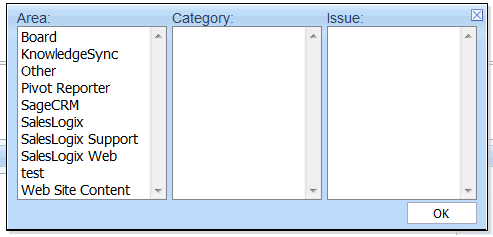
To this:
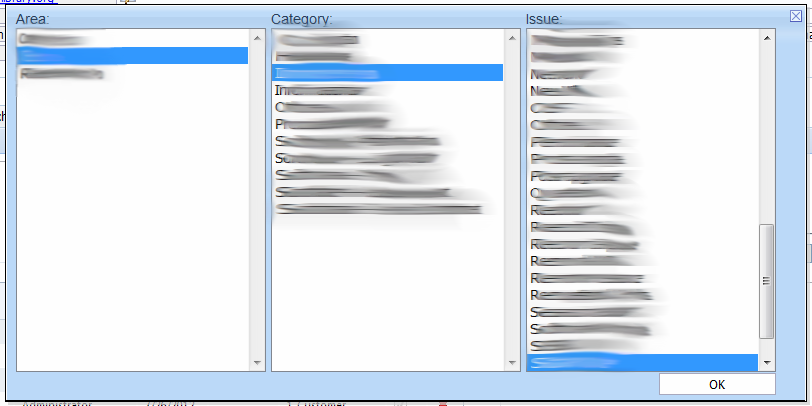
Very similar to the Show function is the SelectionChanged function that needs to also be changed like so:
DependencyLookup.prototype.SelectionChanged = function (index) {
if ((index + 1) < this.CurrentIndex) {
this.LookupControls[index + 1].LoadList(this.GetSeeds(index + 1));
var parentListId = this.LookupControls[index + 1].TextId.replace(“_Text”, “_List”);
var parentList = document.getElementById(parentListId);
if (parentList) { parentList.size = “20”; parentList.style.width = “250px”; }
for (var i = index + 2; i < this.CurrentIndex; i++) {
this.LookupControls[i].ClearList();
var parentListId = this.LookupControls[i].TextId.replace(“_Text”, “_List”);
var parentList = document.getElementById(parentListId);
if (parentList) { parentList.size = “20”; parentList.style.width = “250px”; }
}
}
};
Now the thing to remember is you also need to add your code to the minified sage-controls.js file in the same way you did above in order to actually see this change.


You’re welcome! I hope everyone noticed the example is on a CustomerPortal:
#MainContent_AddPortalTicket_dplArea_Area_List
This needs to be changed to the name of the control on the corresponding portal.