


The Address control that is found on the Account and Contact detail forms in the SalesLogix web client is a custom composite control. One of the features this gives you is an edit dialog to update the address fields. This is invoked when you click the Pencil Icon that is also part of the composite control:
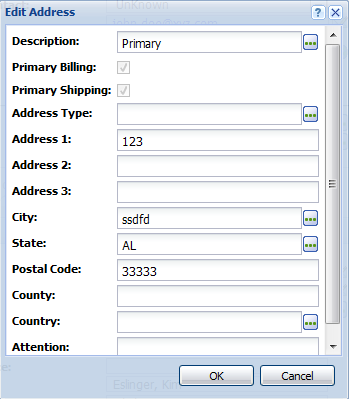
Unfortunately this edit dialog, as well as most other attributes of the Address control are contained in a compiled Sage Web Control assembly and are not customizable. The SalesLogix web client does have an OOTB edit address screen, that is invoked from the Address tab at the Account and Contact level.
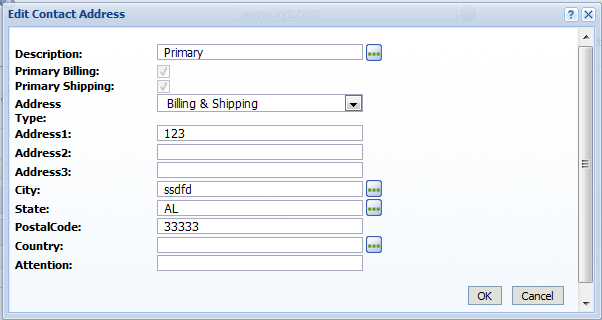
If you need to change the default address edit dialog (like if you have added a custom address field, or want some custom validations, etc) it would sure be nice to do this. How can you though when the edit address dialog of the Address control is not customizable? Well a little creativity is all you need. lets take a look at how to do this.
Step 1- Add a custom load action
On the main detail quick form, add a C# Snippet Action Item to Page Load of the quickform (Make sure On Repaint Event of the code is set to True)
Address.ReadOnly = true;
Address_lbl.ForeColor = System.Drawing.Color.Blue;
Address_lbl.Style[“text-decoration”] = “underline;”;
Address_lbl.Text = “Edit Address”;
Address_lbl.ToolTip = “Click to Edit Address”;
Address_lbl.Attributes.Add(“onclick”, “var btn= document.getElementById(‘” + btnEditAddress.ClientID + “‘); if(btn) btn.click();”);
btnEditAddress.Style[“Display”] = “none”;
What this code is doing is setting the address control (Named Address) to be read only. This will eliminate the pencil icon to prevent the wrong edit screen from opening. Next we are changing the label of the address control (rendered as the control name + “_lbl”). We are making the label appear like a hyperlink with the text “Edit Address”. Finally we are adding a client side event to the click action. This client side action is looking for a button on our form (we have not added it yet) and then is invoking its client side action, which will in turn execute the server side action of the same button (we will add that later too).
Step 2- Add our custom button with a server side click action
I normally will add this button to the toolbar area of the quickform just so it is out of the way and less likely to be removed by somebody who sees the button on the form and does not know what it is. The important bits about adding the button are as follows:
- ControlID: btnEditAddress
- Caption: Do Not Delete
- On the Click Action, add a new C# Snippet Action Item with the following code (this is for the contact view, you would need to change the first line for another entity):
Sage.Entity.Interfaces.IContact con = this.BindingSource.Current as Sage.Entity.Interfaces.IContact;
if(con != null && con.Address!=null)
{
string Id = con.Address.Id.ToString();
if (DialogService != null)
{
DialogService.SetSpecs(200, 200, 318, 600, “AddEditAddress”, “”, true);
DialogService.EntityType = typeof(Sage.Entity.Interfaces.IAddress);
DialogService.EntityID = Id;
DialogService.ShowDialog();
}
}
This code will be called after our client side code runs we added in step 1. The tricky thing here is we are invoking the edit address quick form which is already on the standard Account and Contact pages because it is used by the Address tab.
Here is what our deployed details page looks like after these changes:

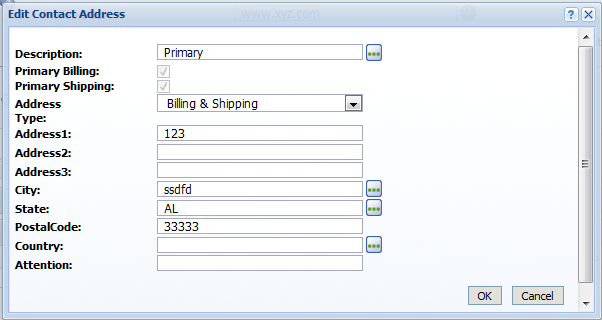
And clicking the label opens the Edit Address Quick Form:


Lee, you are correct. The same approach could be used but you would need to build your own edit lead address screen since one does not exist yet.