


In the official Sage What’s New power point there is a slide that is a little mis-informative and cryptic. I want to clarify a few of these points. Here is the page:
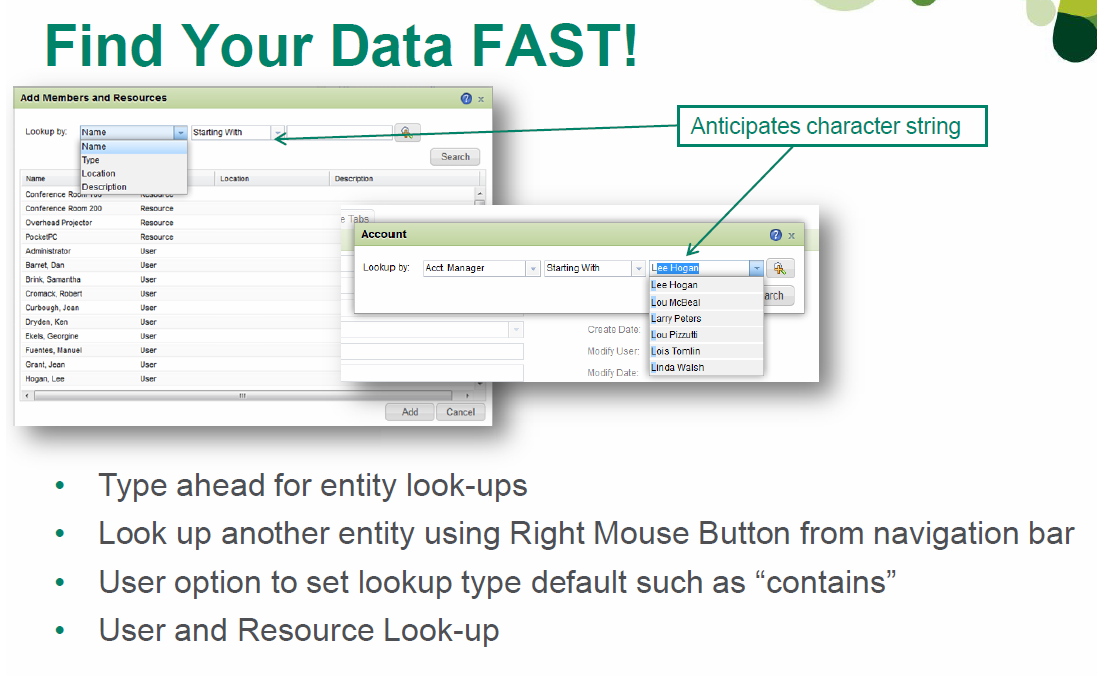
“Type head for entity look-ups”: This is a bit misleading. What this functionality really is that any column marked as “User” formatted in your default group look-up layout will allow you to type ahead to find the user. What this new feature really is the user field look-ups basically have a pre-loaded drop down list of users in the system available for type ahead look-ups. This list of users is not the user values contained in the field you are searching, instead it is just a list of all active (non-retired) users defined for your system. This feature would be better called “Type ahead for entity look-ups on user fields”. There is no type ahead feature on most fields like “Account Name” or “Account Type”, etc.
“Look up another entity using Right Mouse Button from Navigation bar”: Nothing new here. To look-up an entity you right click on the appropriate entity icon and choose “Lookup X”. This functionality is no different than in SalesLogix version 7.
“User option to set lookup type default such as “contains”” This is a new feature that lets a user define what conditional operator they want defaulted in all look-ups. This is found under the Groups tab in the Tools..Options of the web client for the user.
“User and Resource Look-up” In the screen shot this is actually the background image. It is incorrectly labeled as having something to do the “Anticipates character string” which it does not. The Type ahead feature is only on entity look-ups in the list view and is not available anywhere else. What this feature really alludes to is two fold:
- You can now manage resources in the SalesLogix web client under the Administration navigation area.
- You can add resources to Phone Call and Meeting activities.
On the new schedule activity screen, there is a new tab called Availability. On this tab you can click the green + symbol to either add a member (SalesLogix user) or resource to either the Phone call or Meeting activity. When you click the + sign the “Add Members and Resources” dialog shown in the screen shot is presented. There are a couple of glaring problem with this new area:
- Resources and members are included in one interface “Availability”. In the LAN client you have 2 tabs, one for “Members” and one for “Resources”. Having one mashed up interface in the web is not intuitive and makes seeing who or what is involved in an activity difficult.
- When adding, resources and users are combined in one look-up. Why?
- When adding, resources always show at the top. In my experience it is less likely you schedule resources. It is more likely you schedule other attendees. Now every time you want to add someone you have to scroll past all the resources first. Ditch the combined look-up. Add two buttons, one for Add Resource and one for Add Member. Better yet make 2 tabs like the LAN client.
- When scheduling a To-Do, the Availability tab shows. The + sign is not there. This lines up with the LAN behavior in that you can’t add resources or members to a To-Do. However, in the web, this tab should be hidden completely. Showing the tab gives users the false impression they should be able to add Members and Resources when they can not.

