


Customer FX Infor CRM SLX Field Notes
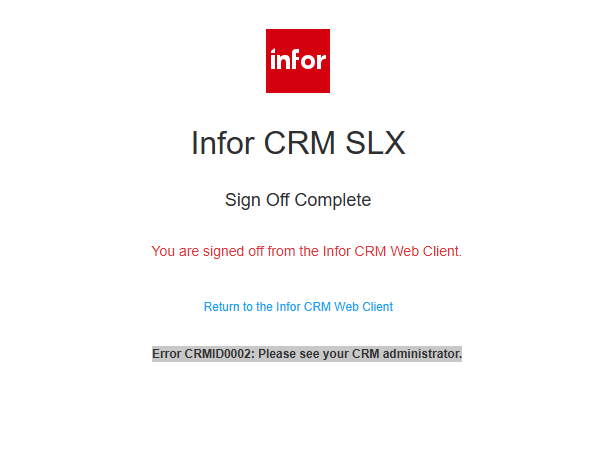
At Customer FX, we recently identified a synchronization issue in an Infor CRM SLX v10 environment using Infor OS Portal authentication (formerly Infor Ming.le) for CRM login.
In our testing, when a user is retired and then recreated in Infor CRM SLX, legacy ERP and federated authentication values are not always fully cleared. This can prevent the newly created user from:
- Logging into Infor CRM SLX
- Synchronizing with Infor OS Portal
- Returning to an InSync status
- Successfully processing related integration BODs
Because several of the affected fields are not exposed in the CRM interface, administrators may not immediately see the root cause.
If you receive login or synchronization errors after recreating a user, this may be the issue.
Does this issue affect Infor Ming.le users?
Yes. This issue affects environments using Infor OS Portal for federated CRM authentication.
Infor renamed Infor Ming.le to Infor OS Portal, but many long-time administrators still search using the original terminology. This article applies to both naming conventions.
Why does a recreated user fail to sync in Infor CRM SLX v10?
When a user is retired and recreated, Infor CRM SLX may retain ERP identity and synchronization values in the UserSecurity table.
Based on our work supporting production SLX environments, the following fields are commonly involved:
- ERPEXTID
- ERPSTATUS
- ERPLOGICALID
- ERPVARIATIONID
- ERPDISTINGUISHEDNAME
- SYNCSTATUS
- FEDERATEDIDENTITY
- ERPUNIQUEID
If these values are not cleared, Infor CRM may associate the newly created user with the retired user’s synchronization metadata, causing login or sync failures.
How do you fix user sync issues after recreating a user?
At Customer FX, we resolved this issue by clearing the legacy ERP synchronization fields directly in SQL.
Important: These updates require direct database access and should only be performed by experienced administrators after appropriate backups are taken.
Step 1: Clear existing ERP sync values
update sysdba.USERSECURITY
set ERPEXTID = null,
ERPSTATUS = null,
ERPLOGICALID = null,
ERPVARIATIONID = null,
ERPDISTINGUISHEDNAME = null,
SYNCSTATUS = null,
FEDERATEDIDENTITY = null,
ERPUNIQUEID = null
where userid in (‘<USERID>’)
Important: The ERPUNIQUEID field is not visible in the Infor CRM interface, but it must also be cleared.
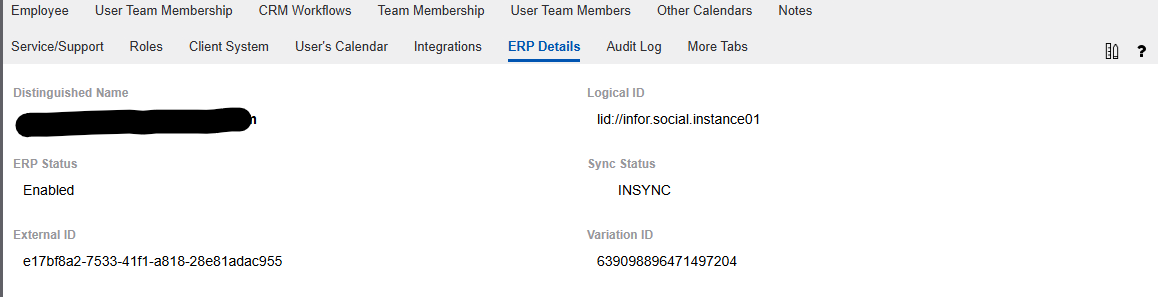
Step 2: Review the ERP Details tab
After clearing the database values, review the user’s ERP Details tab in Infor CRM. Confirm the values have been reset before initiating synchronization.
The Distinguished Name should ultimately contain the user’s email address (for example: bsmith@smith.com).
Step 3: Reprocess failed BODs
In some environments, synchronization attempts may leave BODs (Business Object Documents) in a 999 status.
To reprocess them:
- Locate the failed BOD records
- Change the status from 999 back to 0
- Allow the integration queue to process them again
Step 4: Force a new synchronization
Once the fields are cleared, force a fresh synchronization event:
- Open the user record in Infor CRM
- Make a minor change (for example, add a character to the user’s First Name)
- Save the record
- Remove the character
- Save again
This forces Infor CRM to generate a new BOD and trigger synchronization.
Step 5: Verify the user returns to “InSync”
After synchronization completes, confirm the user’s sync status returns to: InSync
This indicates the user has successfully synchronized with Infor OS Portal.
Step 6: Reapply security roles if needed
Depending on your environment, security roles may have been cleared during the update process.
Be sure to:
- Open the user record
- Review assigned roles
- Reapply any missing permissions
Why does this matter for Infor CRM administrators?
This issue can block new user onboarding in environments using Infor OS Portal authentication.
Without clearing these hidden synchronization values, administrators may experience:
- User login failures
- Synchronization errors
- Stalled BOD processing
- Delayed onboarding
- Security role inconsistencies
Based on our experience supporting Infor CRM environments, validating these ERP synchronization fields should be part of any user retirement and recreation process.
Customer FX Recommendation
At Customer FX, we recommend that administrators using Infor CRM SLX with Infor OS Portal authentication validate ERP synchronization fields anytime a user is retired and recreated.
This simple validation can prevent hours of troubleshooting and ensure users are able to log in and synchronize successfully from day one.
For more real-world Infor CRM SLX tips, troubleshooting guides, and upgrade insights, follow Customer FX’s Infor CRM SLX Field Notes series.
About Customer FX Infor CRM SLX Field Notes
Since 1993, Customer FX has helped organizations implement, support, customize, and upgrade Infor CRM SLX environments. This series shares real-world troubleshooting discoveries, upgrade insights, and technical best practices from production CRM environments.
Need help with your Infor CRM SLX environment? Contact Customer FX.

