


Introduced in version 10 of the Infor CRM Saleslogix web client is a new Quick Form control type of a Widget Panel. This new type of control can be added to Quick Forms to allow users to then construct dashboards at a specific entity within the web client. In the v10 evaluation system there is a sample Account level tab called “Widget Panel” that shows this functionality. This post is going to explain the details of what this new control is, how to use it, and how to bundle up such components to transfer to another system.
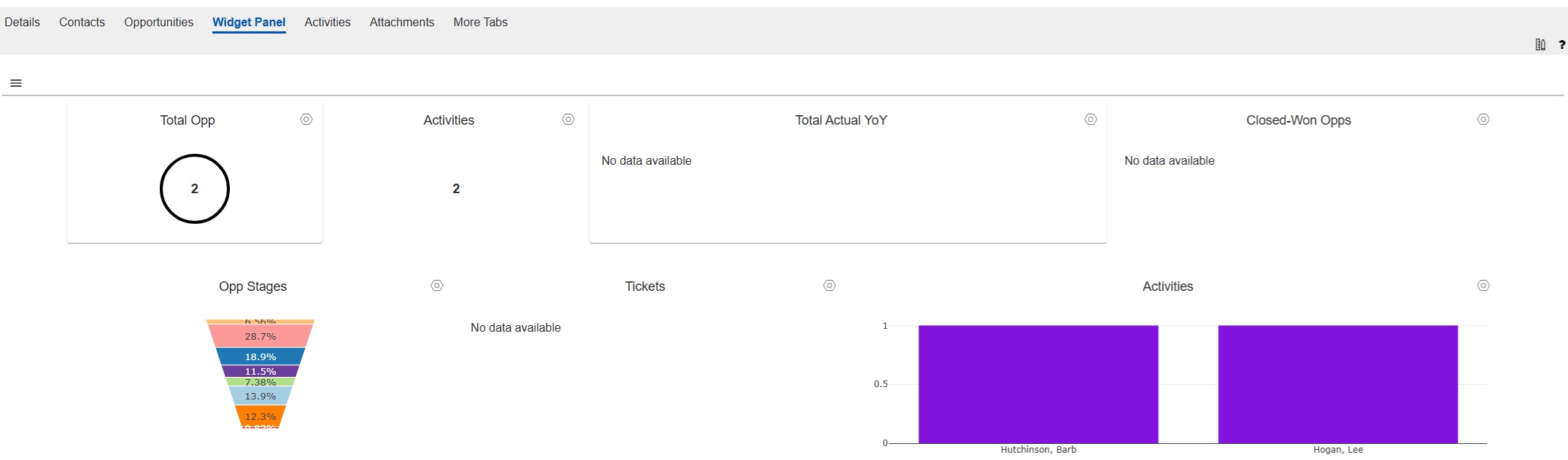
The Widget Panel operates similar to the responsive main dashboard page that has existed in previous versions. This is accessed via the “Dashboard” navigation item under the Sales navigation group. These responsive dashboards allow users to create new tabs, and within those tabs add graph widgets bound to different entity properties as metrics to display. The Widget Panel control that you can add to a Quick Form, itself has no configurable components, when adding it to the Quick Form. You simply add a “Widget Panel” control, found under the “Containers” group of controls. That is really all you need to do. Then you can add that Quick Form as a Smart Part to the relevant portal page definition in the SLXClient portal.

The Widget Panel control that is added to the Quick Form has no built-in data of its own. Once deployed, the Quick Form would not show any data when viewed in the web client. The data to display must be configured by end-users. This is done by going to the Quick Form in the web client and clicking the “hamburger” icon in the upper left corner of the tab. Here you can add a new “Layout”. Multiple layouts can be added to a single Widget Panel. These Layouts do not show at the same time but you can defined which Layout is the default one, and the user can toggle between the Layouts via the “hamburger” menu. These Layouts can than have Widgets added to them, and finally the Layouts can be shared out to users, teams, or everyone. THis is all also done via the “hamburger”.

When adding Layouts and widgets to those Layouts, those are stored in the database in the PLUGIN table with a Type=39. That Plugin Type is not currently visible in the older Architect, however that Type is available in the Application Architect when adding a Plugin Action to a web manifest. The plugin Type is called a “ResponsiveDashboardWidgetPane”. Each of the Widget Panel’s Layouts is stored as a separate Plugin record. When a Layout is released, a second copy of the Plugin row is added for each of the release(s), just like normal Plugin behavior.

If you wanted to add a Widget Panel in a development system and then move that to a different environment you would need to create a new Web Manifest and then make sure you add to this Manifest the following:
- The Quick Form from under the Entity
- The Smart Part definition on the Page in the SLXClient portal
- An Action to add the ResponsiveDashboardWidgetPane Plugin(s) for the layouts that you had configured.
When installing it will prompt if you want to release the Plugins. Here you can define who the layouts are shared to. If you need to share them out differently, you would need to go to the Widget Panel in the web client and set the releases under the action menu.

