


Today we will work with SalesLogix Open Opportunities by Account Crystal Report. The blog post on January 6th 2009 details the minor issues I discovered with this report. Here is the link if you want to revisit the post. This is what I wrote on the “Open Opportunities by Account” report.
Start Excerpt………………………
The Open Opportunity By Account uses the condition fields of Modifyuser and ModifyDate. The data in the report seems in line with what I would expect. I see the same issue with the Est. Close Date field (Formating) and I would work the Sales Potential percent sign into the report using a formula field just to make things look a little better. 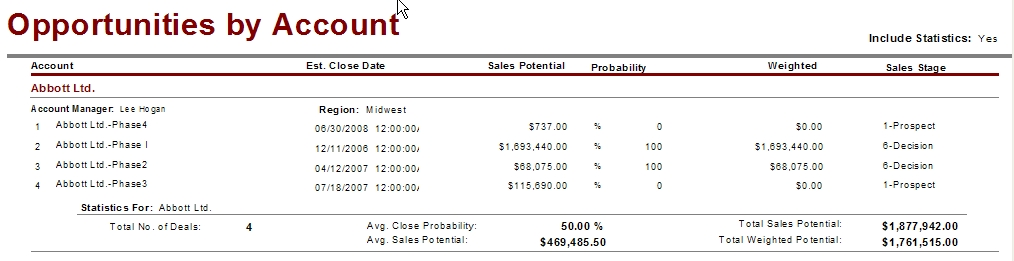
End Excerpt…………………………
The orginal post was written using a 7.2.2 version of SalesLogix and I am happy to report that the 7.5.1 version of this report was updated fixing the date formatting issue. The percent sign for probability was also addressed by simply adding the percent sign in the label and removing it from the details section of the report. This version of the report is update with a new color scheme and the subtotal are much more to the point. Looks pretty good.
For the heck of it I am going to make some changes to the report just because I can. There is way to much white space on the report because it is formatted to Landscape, I will switch to Portrait and close everything up nice and tight. I will also put the percent sign with probability, why should you have to go to the label to see that it is a percentage you are reading.
To change from Portrait to Landscape simply go to the File menu and select “Page Setup” from the list that appears. To see the fields that are now off to the right in the report you will need to navigate to the reports Design Tab. To get everything to fit on the report I changed the Font size for the details section of the report to 8 and the labels located in the Page Header to 9 (Bold does not work in the 8 font size). I aligned all fields and their labels starting from left to right until they were all again on the report.
Because it is possible to overwrite the Description field on the report I set it to grow by right clicking on the field and selecting “Format Field” from the list that appears. Navigate to the Common tab located all the way to the left on the Format Editor interface, you will see the “Can Grow” check box, set this to checked and close the editor.
To add the percentage (%) sign to the Probability field, I simply created a label with the symbol inside set to 8 font and then I dragged the existing field into the new label. I then went up to the label for the field and removed the percent sign.
I also added in the City, State, and Zip code fields. Now the Address Table is not currently attached to the report. To add this table I clicked on Crystals Database menu and selected “Database Expert” from the list that appears. I found and highlighted the Address table in the list on the left and selected the arrow pointing to the right located near the center of the open interface. Then I selected the “Link” tab at the top of the open interface, when the tab opened I found that Crystal made the correct link to the Account table and all I had to do was make it a left join which is done by clicking on the line forming the link between the tables and selecting the “Link Options” button located on the right side of the interface. Selecting OK, I am returned to the report, I searched for the field labeled CityStZip in the Address table, I then dragged the field onto the report and located the field under the Account name in Group Header 1. I already had relocated the Account Manager and Region fields to the right.
Finally, I made sure to align the total area for both the Account group and the Report Footer. Nothing big here I know but what the heck, it’s kind of fun.
Here is the screen shot of the update report. 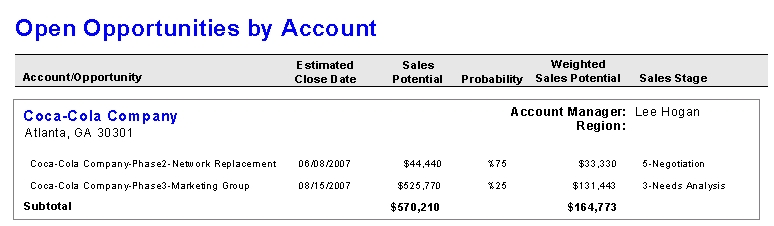
Download the updated Report here and thanks for reading.
Get all of our Free SalesLogix Reports here…
Please – Keep Smiling.

