back to top

Hiding Opportunities in the SalesLogix web client

Occasionally we have clients who do not use the Opportunity components of the SalesLogix web client.  They have asked us to remove the Opportunity visibility within the web client.  Since this is not a common occurrence, I usually end up having to go back and remember where all the places are I need to touch.  I decided to write this article for my own reference and to help others who may be looking to do this.

 The SalesLogix web architecture makes hiding opportunities pretty easy.  most of the configuration involves simply removing web parts from various portal pages, however there are a couple of smart parts you need to touch.

 Lets start with the easy ones, the portal items to remove:

 Account Details

On the Account Detail Page, remove the web parts “AccountOpportunities” and “AccountResellerOpportunities (Custom)”
Contact Details


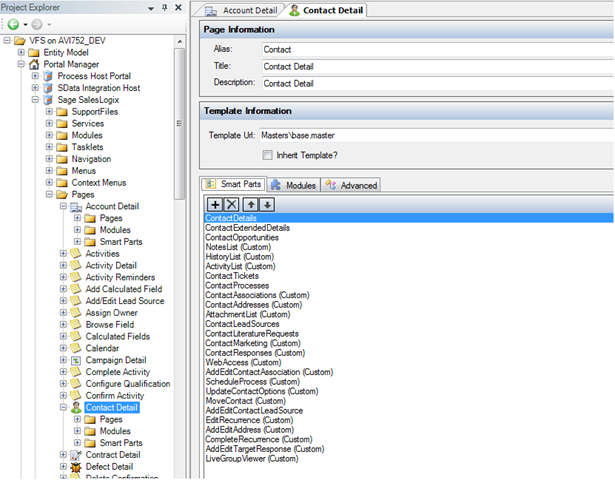
On the Contact Detail Page, remove the web part “ContactOpportunities”


Main Portal


On the main Sage SalesLogix portal, click the Navigation tab and under Navigation Bar, remove the item under “Sales” called “Opportunities”
Main Portal Menu


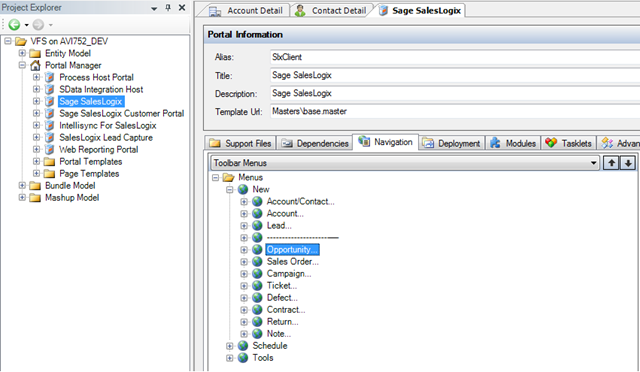
On the main Sage SalesLogix portal, click the Navigation tab and under Toolbar Menus, remove the item under “New” called “Opportunity…”
 

Options

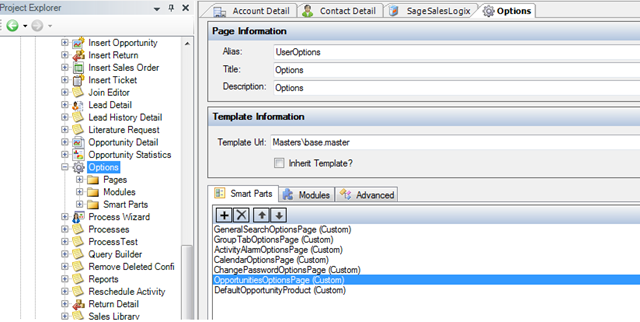
On the Options Page, remove the web parts “OpportunitiesOptionsPage (Custom)” and “DefaultOpportunityProduct (Custom)”


Next we need to modify a few Activity and History forms.  Most of the forms are custom smart parts but there is one History Quickform.

  • Under Entity Model…Packages…SalesLogix Activity Support…History…Forms, open History Details. Bring up the Properties for the Opportunity Lookup and set the Visible property = false.  Save the Quick form.
  • Under the Portal Manager…Sage SalesLogix…Support Files…Smart Parts…Activity open ActivityDetails.ascx.  Look for both the Opportunity label control and the Opportunity lookup control in the markup.  Add the attribute Visible=”false” to both of these controls.
  • Under the Portal Manager…Sage SalesLogix…Support Files…Smart Parts…Activity open CompleteActivity.ascx.  Look for both the Opportunity label control and the Opportunity lookup control in the markup.  Add the attribute Visible=”false” to both of these controls.
  • Under the Portal Manager…Sage SalesLogix…Support Files…Smart Parts…Activity open ScheduleCompleteActivity.ascx.  Look for both the Opportunity label control and the Opportunity lookup control in the markup.  Add the attribute Visible=”false” to both of these controls.

That is all there is to it.  Opportunities no longer visible in the web client.


  •  


Contact Customer FX for your CRM project
We let our expertise speak for itself - let us know how our all-star team can help on your CRM project
About the Author
Kris Halsrud
Kris Halsrud
Kris Halsrud is a Senior Analyst / Developer for Customer FX Corporation.

1 COMMENT

LEAVE A REPLY

Please enter your comment!
Please enter your name here

Infor CRM Sync for Exchange: Action Required by August 31, 2026

Using Infor CRM Sync for Exchange with Microsoft 365? Your Exchange administrator must update tenant settings by August 31, 2026 to prevent sync disruption.

[Webinar] What’s Coming Next for Infor CRM SLX and Why v10 Matters

See what’s coming next for Infor CRM SLX, including new marketing workflows, automation improvements, and reasons to consider upgrading to v10.

Disable Caching in Infor CRM SLX Web Client

In the rare case caching is causing issues in the Infor CRM SLX web client, it is possible to disable specific types of caching by making edits using Application Architect, and then deploying.

Exploring AI Options for Infor CRM v10

I've started taking a closer look at the AI capabilities built into Infor CRM v10. Over the next several posts, I'll share what I learn. From the built-in features and supported AI providers to implementation considerations, costs, and practical use cases.

Infor CRM SLX 10.0: Delegate Ownership Changes for “Everyone” Records

Learn how the new EveryoneOwnerAssignment secured action in Infor CRM SLX 10.0 allows designated users to change ownership of Everyone-owned records without requiring Administrator access.

Related Articles

Infor CRM Sync for Exchange: Action Required by August 31, 2026

Using Infor CRM Sync for Exchange with Microsoft 365? Your Exchange administrator must update tenant settings by August 31, 2026 to prevent sync disruption.

[Webinar] What’s Coming Next for Infor CRM SLX and Why v10 Matters

See what’s coming next for Infor CRM SLX, including new marketing workflows, automation improvements, and reasons to consider upgrading to v10.

Disable Caching in Infor CRM SLX Web Client

In the rare case caching is causing issues in the Infor CRM SLX web client, it is possible to disable specific types of caching by making edits using Application Architect, and then deploying.

Exploring AI Options for Infor CRM v10

I've started taking a closer look at the AI capabilities built into Infor CRM v10. Over the next several posts, I'll share what I learn. From the built-in features and supported AI providers to implementation considerations, costs, and practical use cases.

Related Videos