


I recently ran into a situation where I had built several quick forms on the SalesLogix web that contained lookups. Once the quick forms were deployed to a web site, when attempting to use the lookup the lookup would open with the defined lookup columns, however, regardless of search criteria entered no results would show. Looking at activity on the web server through the SLX Profiler, I was also unable to find any activity that actually queried the system using my lookups. It seemed as if the lookups were just not there.
After too much digging I found the cause of the problem. It was related to a bug in the SalesLogix Lookup wizard.
If we look at the deployed SalesLogix quick form’s ascx page we can see how the lookup is rendered:
<SalesLogix:LookupControl runat=”server” ID=”lueTargetSystem” LookupEntityName=”SystemCategory” LookupEntityTypeName=”Sage.Entity.Interfaces.ISystemCategory, Sage.Entity.Interfaces, Version=0.0.0.0, Culture=neutral, PublicKeyToken=null” LookupBindingMode=”String” EnableHyperLinking=”true” >
<LookupProperties>
<SalesLogix:LookupProperty PropertyHeader=”<%$ resources: lueTargetSystem.LookupProperties.SysCategoryDisplay.PropertyHeader %>” PropertyName=”SysCategoryDisplay” PropertyType=”System.String” PropertyFormat=”None” UseAsResult=”True” ExcludeFromFilters=”False”></SalesLogix:LookupProperty>
<SalesLogix:LookupProperty PropertyHeader=”<%$ resources: lueTargetSystem.LookupProperties.Alias.PropertyHeader %>” PropertyName=”Alias” PropertyType=”System.String” PropertyFormat=”None” UseAsResult=”True” ExcludeFromFilters=”False”></SalesLogix:LookupProperty>
<SalesLogix:LookupProperty PropertyHeader=”<%$ resources: lueTargetSystem.LookupProperties.VendorAccount.AccountName (Account Name).PropertyHeader %>” PropertyName=”VendorAccount.AccountName (Account Name)” PropertyType=”System.String” PropertyFormat=”None” UseAsResult=”True” ExcludeFromFilters=”False”></SalesLogix:LookupProperty>
<SalesLogix:LookupProperty PropertyHeader=”<%$ resources: lueTargetSystem.LookupProperties.Type.PropertyHeader %>” PropertyName=”Type” PropertyType=”System.String” PropertyFormat=”None” UseAsResult=”True” ExcludeFromFilters=”False”></SalesLogix:LookupProperty>
</LookupProperties>
<LookupPreFilters>
</LookupPreFilters>
</SalesLogix:LookupControl>
We can see above that all appears good. I can see the lookup is bound properly to look my entity and I can see the columns specified in the Lookup Properties portion.
Upon closer exam however I see that one of my columns is defined with a PropertyName = “VendorAccount.AccountName (Account Name)”. Well that is a problem. There is not a Property named that in my entity model. How did this happen?
Lets take a look at the difference between setting up a lookup using the wizard and doing it manually on the quick form.
When you choose to add a lookup to a quick form SalesLogix will launch a wizard to help you with the setup of the lookup:

After you define the first three parameters (What information will you be looking up, What property will receive the result, and select how the lookup will display) You get to select the properties of the lookup. These are the minimum setting you need to define the lookup. After you fill out these four attributes you can click the OK button and the lookup is added to the form. You can also optionally add conditions on the lookup, if desired.
Lets backup though and look at adding the columns that comprise the lookup through the wizard. When you click the Add button you are presented with the properties from the entity you selected to lookup in the “What information will you be looking up?”
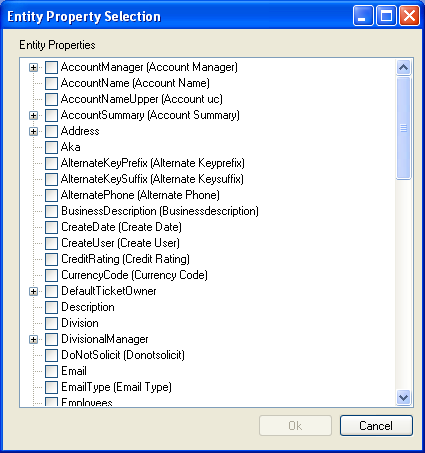
On this screen you can check the columns you wish to add. Notice that the list shows the Property Name with the Display Name in parenthesis following it.
Lets stop right there and now compare what we see when we add columns after the lookup is defined. Once a Lookup is on the form you can bring up its properties and select the Lookup Properties collection:
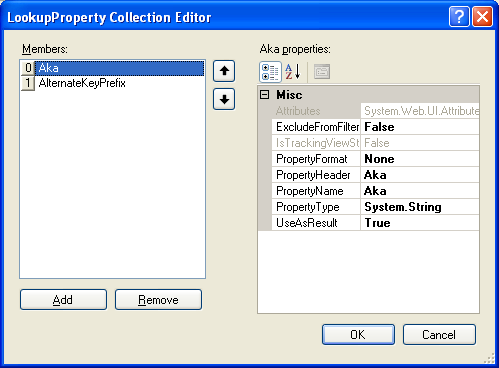
When we add a column here we see a similar though slightly different interface:
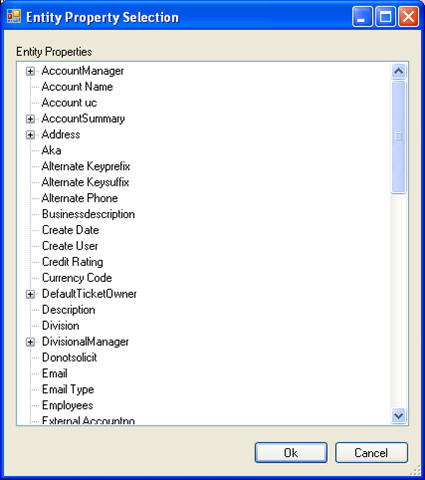
Notice that now we see only the Entity Display Name and not the Actual Property Name.
I am going to go ahead and choose one of the columns I added through the wizard again this time from this interface. Now lets take a look. Here we see the column added through the wizard:
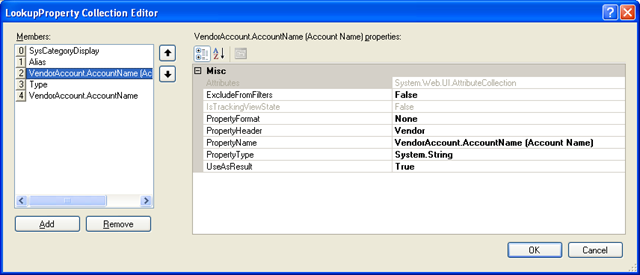
And now the same column added, not through the wizard:
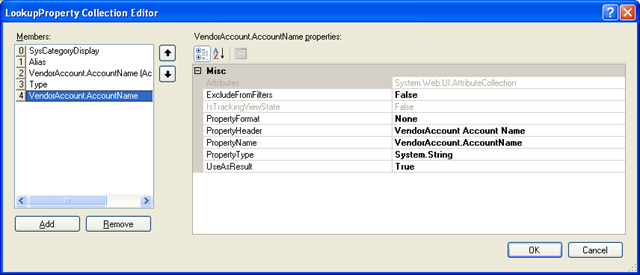
Notice that the PropertyName parameter is only correct on the column not added through the wizard.
If you add your lookup columns through the wizard you need to ensure you review the PropertyName properties of the columns afterwards and ensure that the correct value is listed. If it is not the lookup will not work correctly.

