


In the SalesLogix web client it is often the case where you want to dynamically restrict a control based upon some property of the current entity. For instance, lets say I have a Widget screen and on that screen I want to identify the Account that owns the widget and the Contact at the Account who posses the widget. The Account lookup is unrestricted- I can assign the widget to belong to any Account. However, the contact lookup I want to filter to only show the contacts at the Account selected.
Lets take a look at how to do that:
There are tow properties of lookup controls that are available to make this happen: SeedProperty and SeedValue. It is important to understand what these are used for to know how to use them.
The SeedProperty identifies a property based on the lookup Entity that tells the system this is the field I want to do my filtering on. For instance if you have a Contact lookup (where the Lookup’s Lookup Item Name = Contact) then you could add a SeedProperty of Account.Id to say restrict the Contact lookup to only those contacts at an Account with this ID. This is equivalent to the fully resolved entity property of Contact.Account.Id, where Account is the relationship entity to join the Contact to its related Account entity and the Id is the property within the Account entity we are actually filtering on. You could also add a SeedProperty of just “Fax” this would restrict the Contact lookup to only those contacts that have a Contact.Fax matching the value specified.
Specifying the value is where the SeedValue property comes in. You could hard code a SeedValue. If your SeedProperty was “Fax”, like described above, you could specify the SeedValue = 1235556666 and it would only return contacts in the lookup that have a Fax matching that value. Typically you won’t hard code a value here, as you could do a similar thing with PreFilters. Instead, the thing that the SeedValue allows you to do is bind it to an entity property. For instance, using my sample from above, I can bind my SeedValue to Widget.Account.Id. That way, whenever I set the Account that owns my widget the SeedValue automatically picks up the Account it belongs to and shows only those contacts at that account. To set up the bound property, bring up the lookup control’s DataBinding dialog and select the SeedValue property on the right side list (You may need to scroll to see the property).
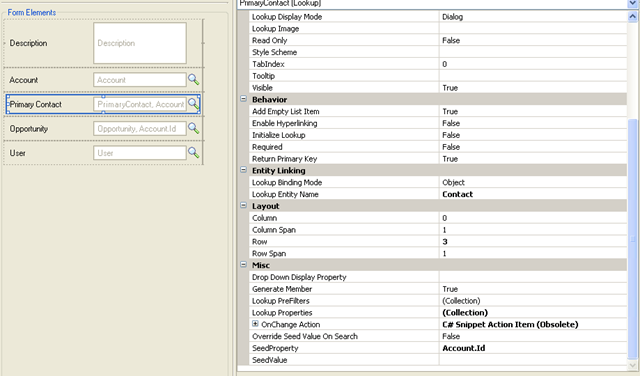
A contact lookup has the SeedProperty set to Account.Id. You will just need to type this in, there is no drop down. Remember this relates to an entity property corresponding to the Lookup’s “Lookup Entity Name”
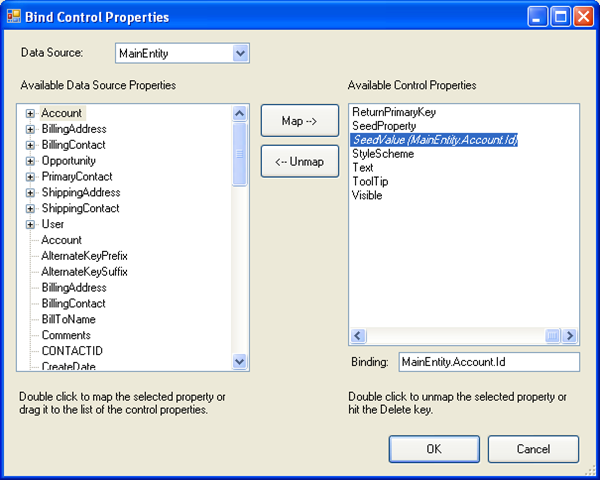
Under the DataBindings of the Contact lookup, you can then bind the SeedValue to the current entity’s Account.Id property.


Great article!
The following Code Snippet can be useful:
protected void lkpAccount_ChangeAction(object sender, EventArgs e) {
lkpContact.SeedProperty = “Account.Id”;
lkpContact.SeedValue = string.Format(“{0}”,lkpAccount.LookupResultValue);
lkpContact.InitializeLookup = true;
}