


I’ve had a few posts lately covering the ComboBox control in the Infor CRM (Saleslogix) Web Client (here and here). The ComboBox itself isn’t too exciting. However, as I’ve mentioned in the previous posts, the fact that the Infor CRM ComboBox renders as a Dijit Select form widget makes it so much more powerful due to the fact that you can use it as a Dijit Select widget and not just as an ASP.NET control. In this post, we’ll look at changing the widget type of the ComboBox to a filterable widget to make it even more useful. We can change the ComboBox so a user can type and the list will automatically filter to show the items matching as the user types – and do it with a single line of code. Pretty cool, right?
I posted before about using large lists in the ComboBox control. How the list becomes difficult to work with with a lot of items. Limiting the size of the list was only a stop-gap solution. It makes it a little easier to work with, but a user looking for an item on that large list still has a lot of items to look through. It’s still a pain. So, what if we could make that list searchable or filterable? That would make the list so much easier to work with. A user could use the list as as normal ComboBox or they could just start typing what they are looking for and the list would automatically and immediately filter. That would be great. Fortunately, that’s an easy, one-line of code solution.
The Dijit FilteringSelect Widget
When a QuickForm gets converted to a deployable ASP.NET UserControl when you build and deploy, the ComboBox control actually gets added as an ASP.NET ListBox like this:
<asp:ListBox runat="server" ID="comboBox1" data-dojo-type="dijit.form.Select" SelectionMode="Single" Rows="1" CssClass="select-control"> </asp:ListBox> |
The real magic happens because of the data-dojo-type=”dijit.form.Select”. This tells the Dojo Dijit UI library to change this element to a Select widget and it ends up looking like a nice looking ComboBox. The Dijit Select widget is only one of the “list” or “combo” type of widgets in the Dijit UI library. What we want to do is convert it to a Dijit FilteringSelect widget. The FilteringSelect widget has this filtering functionality built right in. Converting from the Dijit Select widget to a Dijit FilteringSelect is just a simple task of changing the data-dojo-type attribute for the control.
Making the Change
Changing the ComboBox from being a Dijit Select to a Dijit FilteringSelect is a one line of code change. Let’s do it.
comboBox1.Attributes["data-dojo-type"] = "dijit.form.FilteringSelect"; |
That’s it! So, what did that do? With that one simple change, the Dojo Dijit UI library will convert the control to a FilteringSelect (instead of a Dijit Select) and you get all the functionality of a FilteringSelect along with it. This is what it looks like in action:
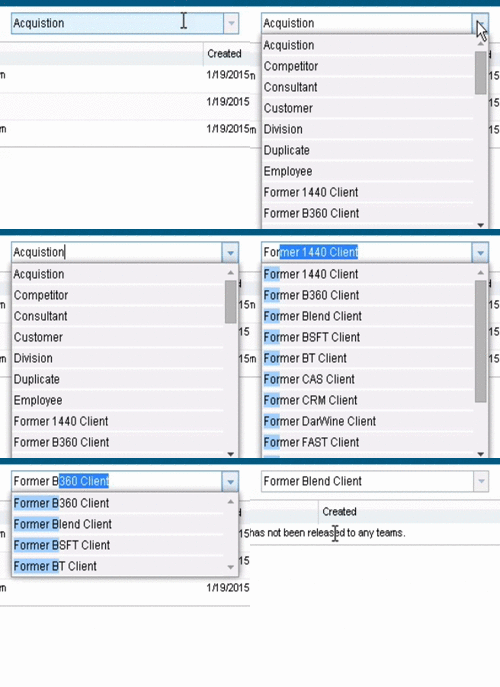
The whole thing works just like a normal ComboBox, you just get the filtering stuff along with it. The user can select from the list like a normal ConboBox OR the user can type in a value and the list will filter as the user types to show the matching values. Even with typing in the value, you still get the change action to fire when an item in selected.
In my opinion, that’s pretty cool stuff.


Suppose you have a list of counties, and you want them based on the state that is in a label. Can you tie this control to the state label so that only counties in that state show in the combobox?
That’s a bit of a different topic than what is described in this article. You’ll basically need to create separate picklists. You’ll need a separate picklist for the counties for each state. So, you’d have picklist named something like “MN-Counties” which contains Hennepin, Chisago, Sherburne, etc. You’d have another picklist “WI-Counties” which contains Dane, Chippewa, etc. Then, when a state is selected, you’d trigger code to set the counties picklist based on the selected state. The biggest problem is that the address dialog isn’t anything like other SmartPart based forms, so it might be a bit tricky to figure out.