back to top

DynaLink 7.0 Map Limitations

Sage DynaLink 7.0, which is a Sage branded product to integrate Sage MAS 90/200 or 500 with SalesLogix is one of the current ways of tying these systems together.  Sage is working on ERP Link which will eventually be the replacement for DynaLink.  However, the ERP link has been in in internal development at Sage for a long time and is not expected to be available until 4Q 2008 at the earliest.  For now DynaLink is the one Sage solution available if you want to integrate MAS and SalesLogix without building something from scratch.

Currently DynaLink has a limitation when building the exports maps, which are maps to extract data from SalesLogix to an external file.  DynaLink uses the concept of linked tables, so that if you need to export data from 2 or more different tables you can do so in one pass (i.e. if you want to export the account name from the ACCOUNT table and the account’s city from the ADDRESS table).

The problem lies in the fact you can not add more than nine custom linked tables to an export map.

Building the export maps is done using the Export Map Wizard in the DynaLink configuration Client.  You can add as many tables as you want through this interface as shown below:
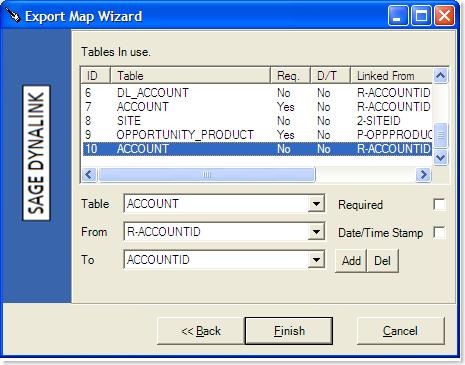
Dynalink Map Wizard

As you can see from the screen shot, DynaLink automatically aliases tables as they are added using a numeric numbering scheme.  The first two tables “P” and “R” are the primary and main reference tables.  These are required and are added via the previous screens in the DynaLink Export Map wizard.  Beyond these two primary tables, all other referenced tables are aliased by number.    As shown above, you can add more than nine tables, and if you do so the alias keeps incrementing to 10 and beyond.

Once you have mapped the tables you wish to use, you now need to edit the mapping using the Edit Export Field Mapping dialog.  With this dialog you can then choose which fields, from any of the tables mapped previously, you wish to export. 

Shown below is an example of adding a field from the tenth custom linked table defined above:
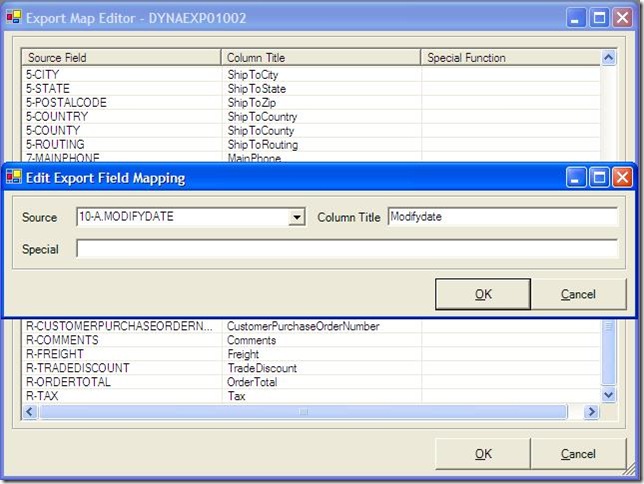
Dynalink Map Wizard 2

Once you select OK, everything looks fine:
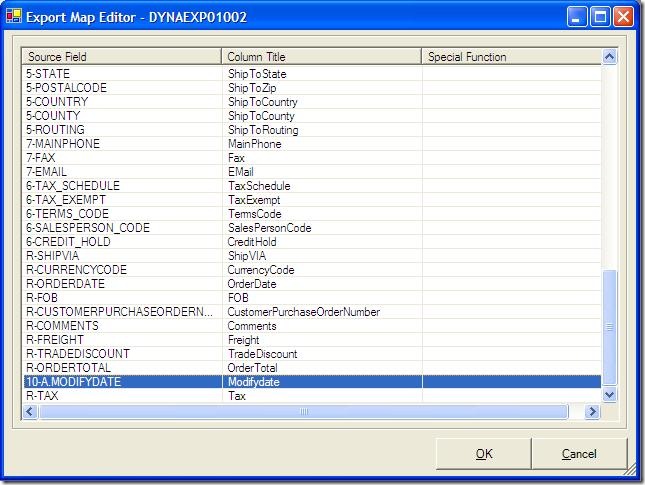
Dynalink Map Wizard 3

However, once you click OK on the Edit Export Field Mapping dialog, the field reference you have chosen is not saved correctly.  If you go back in to edit the mapping again you can see the field reference has been changed to “1–A.MODIFYDATE”:
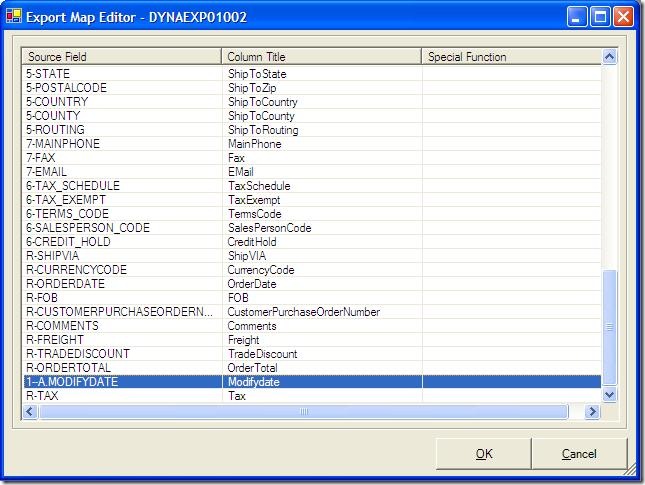
Dynalink Map Wizard 4

If you attempt to run the export, you will receive the following error log in the event logs of the DynaLink server:
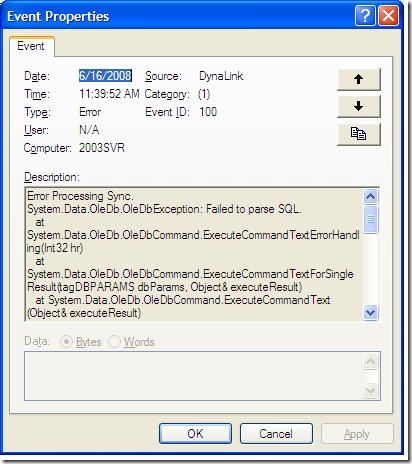
Dynalink Map Wizard 5

So in summary, DynaLink is limited in how many tables you can read from when exporting data.  Unfortunately, you can not access SQL views in the DynaLink Export Map Wizard.  You will need to plan your exports carefully to avoid this limitation.

Contact Customer FX for your CRM project
We let our expertise speak for itself - let us know how our all-star team can help on your CRM project
About the Author
Kris Halsrud
Kris Halsrud
Kris Halsrud is a Senior Analyst / Developer for Customer FX Corporation.

LEAVE A REPLY

Please enter your comment!
Please enter your name here

Infor CRM Sync for Exchange: Action Required by August 31, 2026

Using Infor CRM Sync for Exchange with Microsoft 365? Your Exchange administrator must update tenant settings by August 31, 2026 to prevent sync disruption.

[Webinar] What’s Coming Next for Infor CRM SLX and Why v10 Matters

See what’s coming next for Infor CRM SLX, including new marketing workflows, automation improvements, and reasons to consider upgrading to v10.

Disable Caching in Infor CRM SLX Web Client

In the rare case caching is causing issues in the Infor CRM SLX web client, it is possible to disable specific types of caching by making edits using Application Architect, and then deploying.

Exploring AI Options for Infor CRM v10

I've started taking a closer look at the AI capabilities built into Infor CRM v10. Over the next several posts, I'll share what I learn. From the built-in features and supported AI providers to implementation considerations, costs, and practical use cases.

Infor CRM SLX 10.0: Delegate Ownership Changes for “Everyone” Records

Learn how the new EveryoneOwnerAssignment secured action in Infor CRM SLX 10.0 allows designated users to change ownership of Everyone-owned records without requiring Administrator access.

Related Articles

Infor CRM Sync for Exchange: Action Required by August 31, 2026

Using Infor CRM Sync for Exchange with Microsoft 365? Your Exchange administrator must update tenant settings by August 31, 2026 to prevent sync disruption.

[Webinar] What’s Coming Next for Infor CRM SLX and Why v10 Matters

See what’s coming next for Infor CRM SLX, including new marketing workflows, automation improvements, and reasons to consider upgrading to v10.

Disable Caching in Infor CRM SLX Web Client

In the rare case caching is causing issues in the Infor CRM SLX web client, it is possible to disable specific types of caching by making edits using Application Architect, and then deploying.

Exploring AI Options for Infor CRM v10

I've started taking a closer look at the AI capabilities built into Infor CRM v10. Over the next several posts, I'll share what I learn. From the built-in features and supported AI providers to implementation considerations, costs, and practical use cases.

Related Videos