


If you’re using SalesLogix 7.2 Web along with ActiveMail (the Outlook integration for the SalesLogix Web client – you’ll see the option on the login screen), then chances are you’ve seen an error about “THTTPRequestThread”. This is a particularly annoying error that will display each time you move to a new page. So, every time you do….anything, you’ll see the error dialog. A real pain.
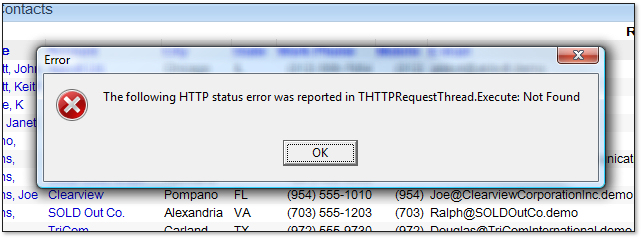
Look familiar? If you’ve not seen this yet then consider yourself lucky. The error won’t always say “not found“. This actual error indicates that the DLL is not properly set up. Some times it will locate the DLL, however it will throw an HTTP 500 error (internal server error) – usually indicating that the DLL could likely not connect to the database. What is happening here is that the ActiveMail component in the SalesLogix Web Client uses an ISAPI extension DLL that is carried over from the pre-7.2 web client that is used for the Outlook mail integration and also for mail merge capabilities. The error could come from several possible causes:
- The extension is not found or it not properly set up
- The extension cannot establish a connection to SalesLogix
- It is having a bad hair day or it is just generally grumpy
I think that #3 is the most likely cause since often when this occurs it seems very random and out of the blue. By random, I mean that it might have been working before and now it is not. However, once you get this, it’s not going away until you fix it. This is initially set up from the Web Host install.
Here’s how this is supposed to be set up. When you run the Web Host installation on the web server, it will install the “slxwebmm.dll” in the path “C:Program FilesSalesLogixWeb ComponentsmmServer” and it will then create a virtual directory under the default website in IIS pointing to this location.
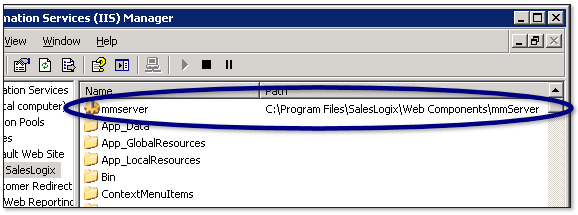
The Web Host install will ask you for the connection details for your SalesLogix database. This will configure the system with the connection details so this extension DLL knows how to connect to your database. Things don’t always go right. That’s where that annoying THTTPRequestThread error will come in.
A great way to see the details about this error and possibly track down what is going on is to use a tool named Fiddler. Fiddler is a free tool that will log all HTTP traffic on your computer. You can load it and see details about what is failing when the mmServer.dll is being accessed.

In the case of the Fiddler screenshot above, we can see that the DLL is found. The attempt is made to call “getdata” in the DLL, however, the result we’re getting is “[ODBC Driver Manager] Data source name not found and no default driver specified”. Sounds like a connection issue. What about fixing that? The connection details are stored in the registry, although you cannot edit it directly since the password is encrypted. An easy way to set the connection details is to install the legacy Web Manager and to use that to write the connection details to the registry.
Here’s what Michael Cessna from Sage has mentioned about this in the partner newsgroups:
The Web Manager has a feature to let you set up a legacy web site and to verify it; however, here are the basics that you need to make this work, if you wanted to do this manually:
- Create a folder named mmserver on your web site that points to a directory where slxwebmm.dll resides. This folder should have read, run, and execute permissions.
- Add a ADOConString string value to the registry. This value will be located under: HKEY_LOCAL_MACHINESOFTWARESalesLogixWeb Host%ComputerName%:%PortValue% where %ComputerName% is replaced with the name of the local computer and %PortValue% is replaced with the port used by your web site.
Example: HKEY_LOCAL_MACHINESOFTWARESalesLogixWeb HostHAL9000:80
The ADOConString value will be the ADO connection string to use:
Example: Provider=SLXOLEDB.1;Password=;Persist Security Info=True;User ID=admin;Initial Catalog=SALESLOGIX_EVAL;Data Source=HAL9000;Extended Properties=”PORT=1706;LOG=ON;CASEINSENSITIVEFIND=ON;AUTOINCBATCHSIZE=1;SVRCERT=”
The Password will be the encrypted password as created by Web Manager. It’s possible to use Web Manager to accomplish step 2 without going through everything else to set the site up correctly in Web Manager (you’ll have to add the correct port and database connection info in Web Manager).- You’ll also probably add the ServerID registry string value in the same location where the ADOConString value is located. The value can be empty. The Web Manager will add this value automatically if you go that route.
- Restart IIS.
I’ve also included a Word document from Sage support on detailing steps to use the Web Manager to restore the connection information.
Good luck, and have fun 🙂


Found that the groups are using “Calculated” fields in their condiction, that where causing the Mail Merge error…